
Demonstrating Pause Ads
Set up an AVOD service that serves pause ads, and try it in a demo player
Pause Ads are non-linear ads displayed over the paused video. They are requested by the player application when the viewer presses pause, and displayed using a SIMID creative.
This playbook shows how to configure the broadpeak.io resources needed to demonstrate them, using the web app:
| Step | Description |
|---|---|
| 1 | Use a VOD catalog source (the standard AVOD sample) |
| 2 | Create the ad server source, using the Interactive Ad Maker template |
| 3 | Create an AVOD service with Pause Ads enabled |
| 4 | Try it in the BannersIn2 demo player |
To keep this demonstration simple, the VOD stream is not monetised with linear ads: the service has no ad insertion apart from the pause ad. Pause ads are however fully compatible with AVOD streams that also have linear ads: the same service can be configured to do both.
Pause ads can also be used with live streams, but they make more sense with streams that have a decent DVR window, which lets the viewer pause and resume where they left off.
Web app or API?The same configuration can be done through the API. The web app is used here because it is the quickest way to discover the concepts.
Video walkthrough
What you need
- An ad server endpoint, or a simulated one, that returns a VAST with non-linear ads compatible with the
bpkio-vast-v1format (an example is given in step 2).
Step 1: VOD catalog source
Pause ads work with any VOD catalog (or other content source). For this demonstration, use the standard AVOD sample.
- Go to Sources.
- If you do not already have an AVOD catalog sample (DASH) source, click Create Samples.
The sample catalog is https://origin.broadpeak.io/bpk-vod/voddemo/default/, with the asset sample 10min/sintel/manifest.mpd.
Step 2: Ad server source
The ad server is called each time the player requests a pause ad. The call goes through the Interactive Ad Maker module of the ad gateway, which turns the ad server response into a SIMID creative. See BannersIn2 service configuration for details.
A pause ad response
The ad server must return a VAST containing a single non-linear ad. The following one displays a full-frame image, with a click-through URL, and impression and creativeView trackers.
<VAST version="4.3">
  <Ad>
    <InLine>
      <Impression>
        <![CDATA[https://httpbin.org/status/200?event=impression]]>
      </Impression>
      <Creatives>
        <Creative id="pulpix-pause-001" adId="samples.broadpeak.io">
          <UniversalAdId idRegistry="samples.broadpeak.io">pulpix-pause-001</UniversalAdId>
          <NonLinearAds>
            <NonLinear width="1920" height="1080">
              <StaticResource creativeType="image/jpeg">
                <![CDATA[https://bpkcscreatives.s3-eu-west-1.amazonaws.com/non-linear/brands/Pulpix/Pause-can-up.jpg]]>
              </StaticResource>
              <AdParameters>
                <![CDATA[{}]]>
              </AdParameters>
              <NonLinearClickThrough>
                <![CDATA[https://www.broadpeak.io]]>
              </NonLinearClickThrough>
            </NonLinear>
            <TrackingEvents>
              <Tracking event="creativeView">
                <![CDATA[https://httpbin.org/status/200?event=creativeView]]>
              </Tracking>
            </TrackingEvents>
          </NonLinearAds>
        </Creative>
      </Creatives>
    </InLine>
  </Ad>
</VAST>
You can use this one directly:
https://bpkiovast.s3.eu-west-1.amazonaws.com/vast-pause-nonlinear-pulpix.xmlThe format of the response is described in Ad Server response schemas (schema bpkio-vast-v1). The tracker URLs above point to a public test server that always answers 200: replace them with your own.
Creating the source
- Go to Sources, and click Create New.
- Set the Type to Ad Server.
- Set the Template to Interactive ad maker (ad gateway). The URL is pre-filled.
- Give the source a Name, for example
Pulpix pause ad server. - Add the following query parameters, with New:
| Name | Value | Description |
|---|---|---|
iam_tag | https://bpkiovast.s3.eu-west-1.amazonaws.com/vast-pause-nonlinear-pulpix.xml | URL of the ad server endpoint, called for each pause ad |
iam_schema | bpkio-vast-v1 | How to parse the ad server response |
iam_template | base-pause-nav-fullframe-card-v1 | Creative template used to display the ad |
- Click Create Source.
Automatic parametersWhen the source is saved, two extra parameters (
bpkio_serviceidandbpkio_sessionid) are added automatically. They are required for tracking.
The base-pause-nav-fullframe-card-v1 template shows the ad image full-frame, with a card to resume playback and a button to dismiss the ad. The iam_template parameter is required here, as the ad server response does not specify the template.
Step 3: AVOD service with Pause Ads
- Click Create a Service.
- Select the application Ad Insertion (Live, AVOD, Catch-Up TV, Linear Parity).
- Give the service a Name (for example
Pause Ads demo), and select the AVOD catalog sample (DASH) as Content source. Click Next. - Leave the main Ad server empty: no linear ads will be inserted in the stream.
- Turn on Pause ads, and select the ad server source created in step 2.
- Click Run.
The service is created, and its URL is displayed. It is the same URL as for any other AVOD service: for the sample catalog, replace the origin path by the service URL to get the stream URL, for example .../bpk-vod/voddemo/default/10min/sintel/manifest.mpd.
Step 4: Try it in the demo player
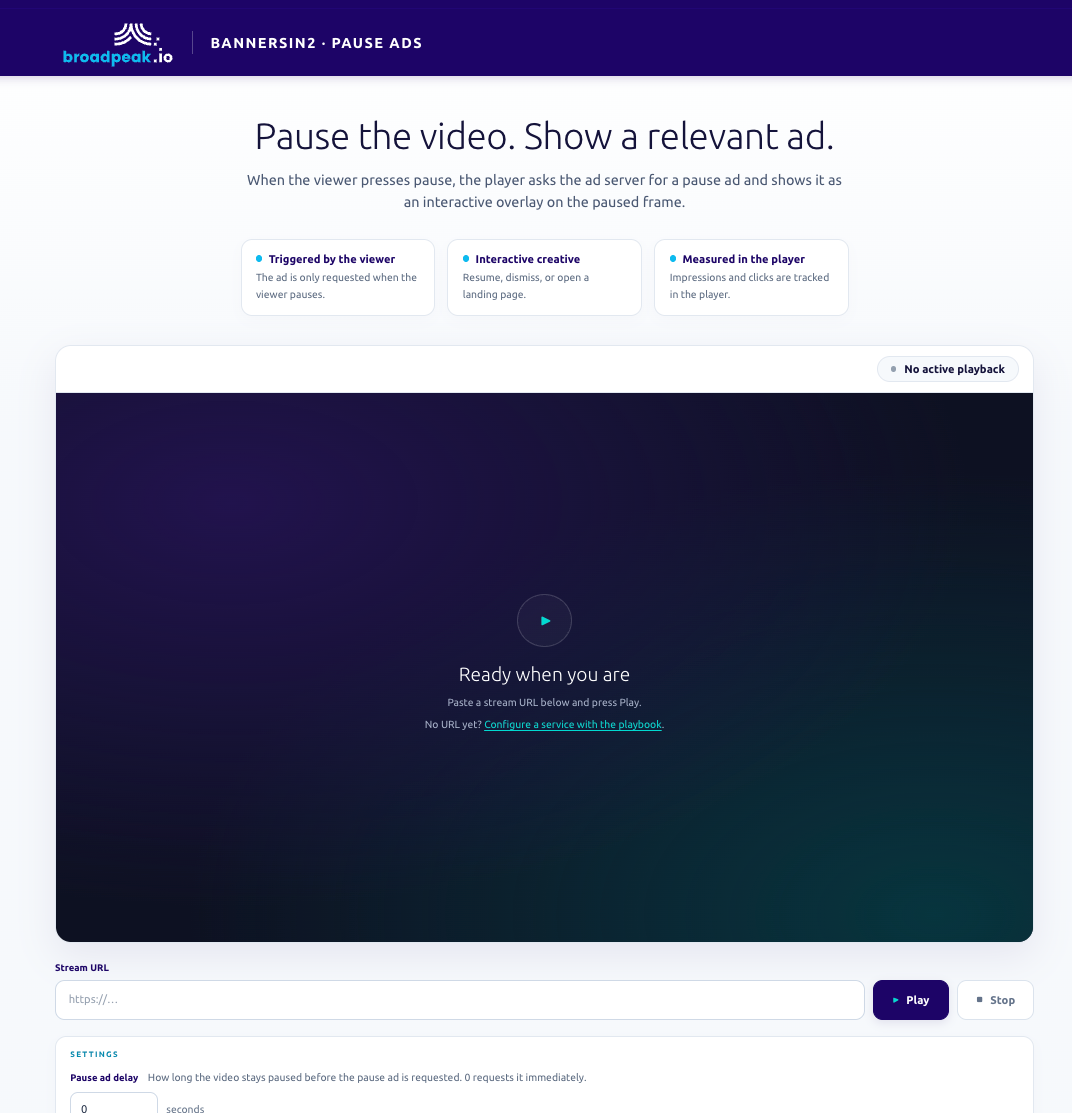
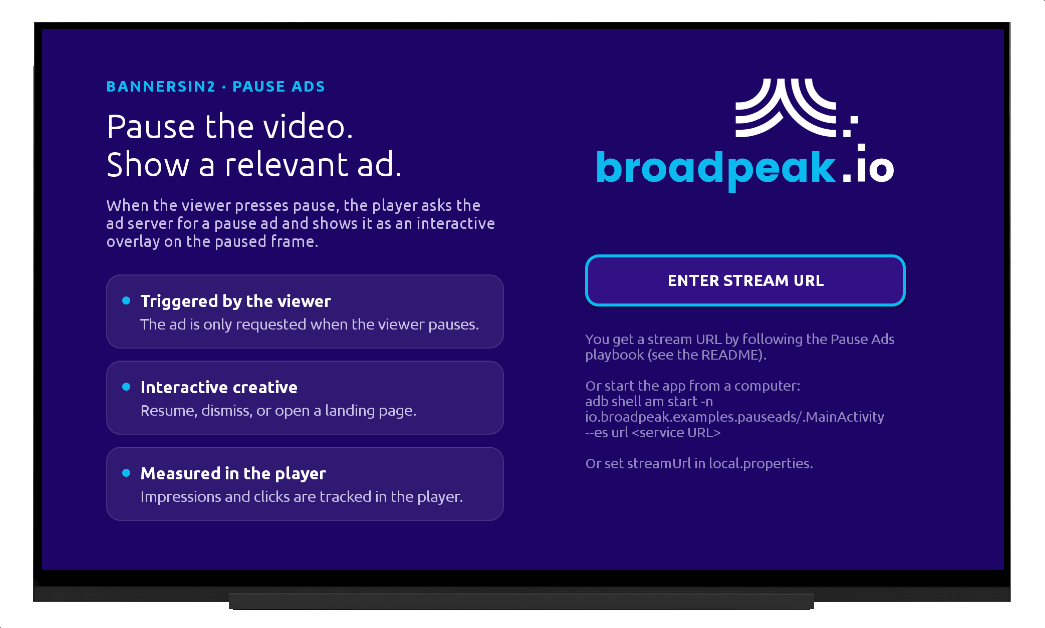
The BannersIn2 examples repository on GitHub includes a Pause Ads demo web player: examples/pause-ads/web.
- Start the example, following its README.
- Open the page with your stream URL:
http://localhost:8081/?url=<stream URL> - Play the stream, then pause it. The pause ad is displayed over the paused frame.
- Click Resume to end the ad and resume playback.
Trying the settings
The demo player has a Settings panel:
- Pause ad delay: how long the video must stay paused before the pause ad is requested. Set it to
3(seconds) before pressing Play, then pause: the ad now appears after 3 seconds. Resuming before the delay ends cancels the request. - Ad parameters: key/value pairs injected into the creative when it is initialised. For example, add
cardImageUrlwith the URL of a thumbnail of the content (such ashttps://studio.blender.org/files/public/thumbnail/03/f7/03f7b0d15c55b428680d4c6bb313f742_m.webp) andnowPlayingTextwithSintel (Blender Studios), then pause again: the Resume card now shows the thumbnail and title.
The default pause ad creative has a number of configuration settings (images, wording, colours, card size...). They are all listed in base-pause-nav-fullframe-card-v1.
When the viewer pauses, the player calls the SmartLib API:
session.requestOutOfBandAds("pause", 0, true, {})See Pause Ads for the complete client-side workflow (delay, resume, dismissal, ad rotation).
Updated about 3 hours ago