
Content Replacement with Orange CDN
How to configure Orange CDN to use it for Content Replacement services
In Using broadpeak.io with a CDN we explain the reasons why you need to use a CDN in front of your broadpeak.io services in order to deliver your manipulated streams in the most optimal and efficient way.
In this section of the Knowledge Centre, we take a few examples and illustrate how to implement them with the Orange Gcore CDN, for a Content Replacement application.
Prerequisites
You need to be familiar with how to configure a broadpeak.io service first. You'll find other playbooks in the "Getting Started" section of our documentation, as well as in the present "Playbooks" section.
You also need to ensure that you have an account on Orange CDN technical portal.
Specifically, we'll use https://origin.broadpeak.io/bpk-tv/bpkiofficial/hlsv3/index.m3u8 (one of our default samples) as the source, from which - in this case - a Content Replacement service has been created, the URL of which would look like https://stream.broadpeak.io/a3eb043e7bf775ded159a8940be5e720/bpk-tv/bpkiofficial/hlsv3/index.m3u8.
Rules
The primary aspect of configuration for the CDN relates to routing. In an ABR stream, there are one or multiple manifests or playlists, and multiple media segments that the player will request in order to render the stream. The player connects to a single CDN, which needs to know where to send those requests. So it needs to be given a set of rules to follow. Those rules will be somewhat dependent on the type of service you are implementing.
For a Content Replacement service, you will need:
- Rules that define how to direct manifest requests to broadpeak.io
- Rules that define how to direct segment calls for the base live stream to its origin (ie. the server that stores that original packaged content)
- One or more rules to direct segment calls for the replacement assets to their respective origins.
Minimum functional configurationThere are dozens of settings that can be defined with Cloudfront. It's not the role of this playbook to explain them all. We'll concentrate on the minimum set to successfully define a production-ready distribution with the samples that we provide for tests.
Some of the settings (in particular caching rules, TTL, TLS version, etc.) may also need adjusting based on your own Origin servers and typical CDN configuration needs.
Note also that the example concentrates on browser-based streaming into common web video players. Other players may require additional and specific settings.
If something isn't behaving as expected, don't hesitate to contact our Support staff at [email protected].
Step 1 - Common Rules
The first steps is to create a CDN resource then an Origin group.
Create CDN Resource
A CDN resource is a CDN configuration that will be used to deliver your broadpeak.io service. It is the equivalent to other terms that we find in the market, such as Distribution, Pull zone, Site, Zone and is essentially an endpoint to which a specific CDN configuration applies, which can be mapped to a custom FQDN, or a FQDN defined by Orange themselves.
When provided by Orange, CDN resource will use a FQDN that will be a subdomain of cdb.cdn.orange.com (for example myservice.cdb.cdn.orange.com). Otherwise, it can be a custom FQDN managed outside of Orange, where DNS management needs to be handled separately.
Create Origin Groups
Origin group for Original Content
Origin groups is a configuration of Origin(s) attached to a CDN resource. It specifies the hostname of the customer’s Origin(s) and its related configuration. In our case, it is the Origin the Orange CDN will pull the content from, therefore we will have to create several Origin groups.
When creating a CDN Resource it is essential to add at least a new Origin group. To do that login into your CDB account, click on Origin group on the left side menu and click on Add origin group button. You be provided by a form to fill.
- Fill in Origin group name as free string. It is the group name to identify this Origin group.
- Then provide Origin source, which the FQDN/hostname of the Origin server. It will be used in http/https get requests from CDN towards the Origin.
- And click on Add group:
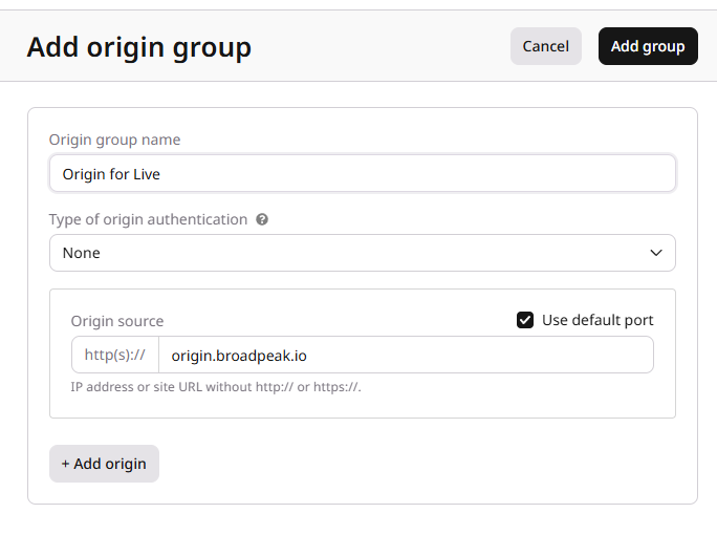
As in our example, the source feed is https://origin.broadpeak.io/bpk-tv/bpkiofficial/hlsv3/index.m3u8,
origin.broadpeak.iois configured as hostname/FQDN in the Origin Group. Adapt it when using your own Live/VOD source.
Now we are ready to complete our CDN resource, we can now click on CDN resource on the left side menu and click on Create CDN resource button. You will be provided by a form as shown:
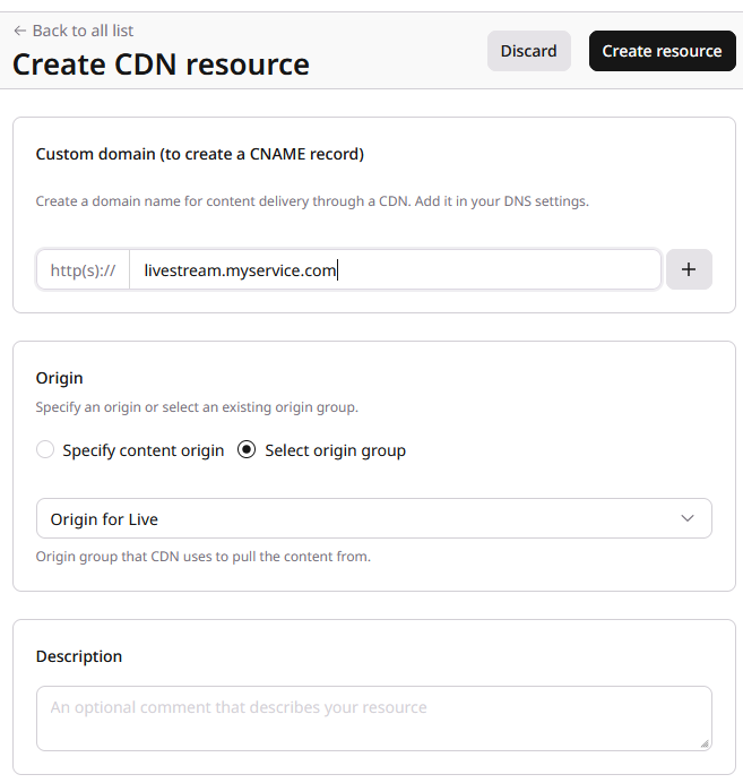
- For the Custom domain fill in the domain you want to use for delivering the content via Orange CDN (for example livestream.myservice.com, DNS configuration required), or use the default domain.
- As an Origin, select the Origin group created in the previous step
- Also optionally, you can add description of the CDN resource to clarify its usage (e.g. CDN resource for Live streaming)
- Click on the Create resource button.
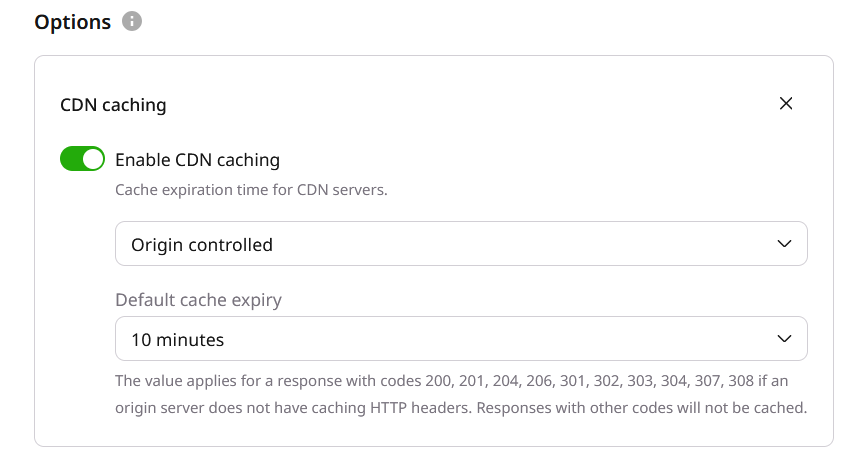
From there (at the CDN Resource level), we need to activate caching by default on the CDN Resource. Caching should be activated by default by toggling Enable CDN Caching so it becomes activated.
- Set the Cache Expiration time to "Origin Controlled" so the CDN follow by default the Time-to-live of the Origin.
- Set the Default caching expiry of your preference depending on whether your content is live or on-demand, which will apply only if no TTL is provided by the Origin.
Origin group for broadpeak.io
For our use-case, we will need to create a second origin group, which will be stream.broadpeak.io. We will need to repeat the previous steps. Click on Origin group on the left side menu and click on Add origin group button
- Fill in Origin group name as free string, we will call it broadpeak.io
- We will use
stream.broadpeak.ioas Origin Source. - And click on Add group.
Add Rules
Rule for Manifest requests
The first rule that we need to configure to our CDN Resource is for Manifests requests
- We want manifest requests to be routed to broadpeak.io.
- We don't want manifest to be cached, as they are personalized by users.
In the top-left corner menu click on RULES:
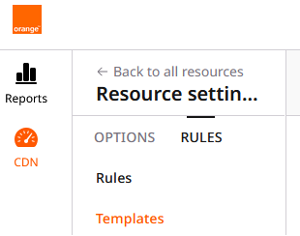
You can choose from some predefined templates, but you can create own rule from scratch.
Click on Create Rule and choose Create blank rule.
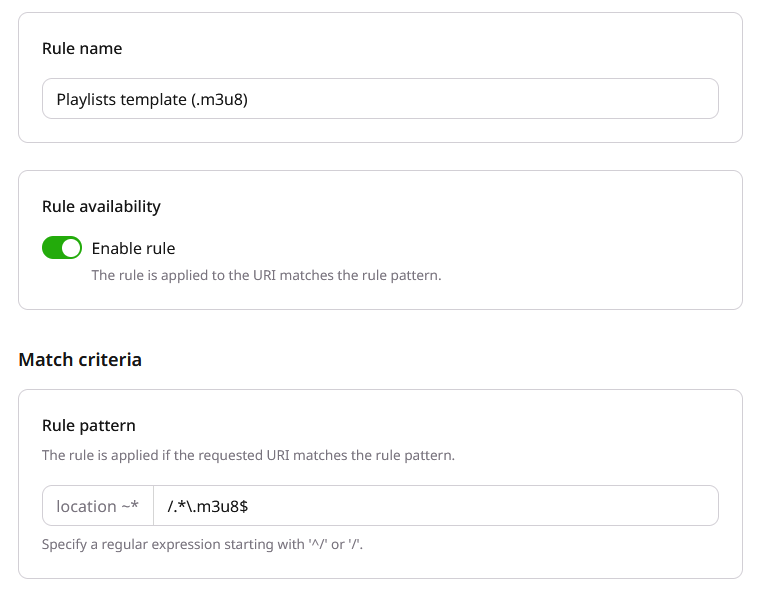
You will be provided by form to specify the behavior - as pictured below - in order to create the Rule and configure the associated behavior. Follow the instructions below to fill it up:
- Fill in the Rule name (free string)
- Set a Rule pattern as a matching criteria. Here a regex can be use to match the manifests requests – in our case to match files with .m3u8 extension (
/.\*\.m3u8$)
-
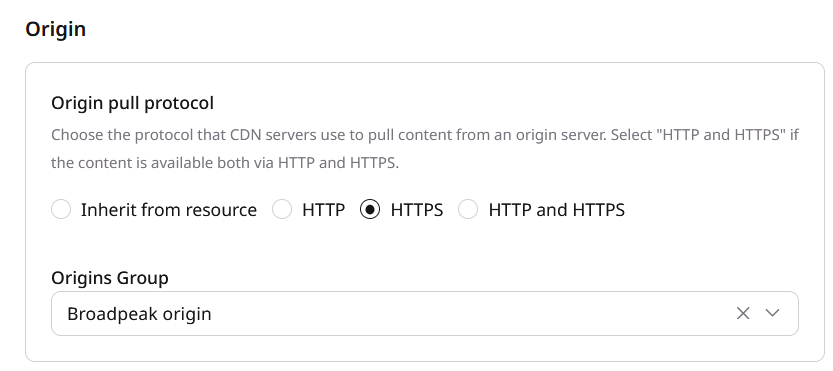
Origin. We will select the Origin group previously created broadpeak.io, and the protocol(s) you want to use to pull from the Origin Group.
CDN Request with queriesIn the rule configured above, only the path is looked at, therefore any queries in the request would be discarded from the matching process. By default, the CDN Resource policies are to forward all queries received to the selected Origin Group.
From there (at the Rule level), we need to disable caching on Manifest Request.
Using the Option button as per the following:
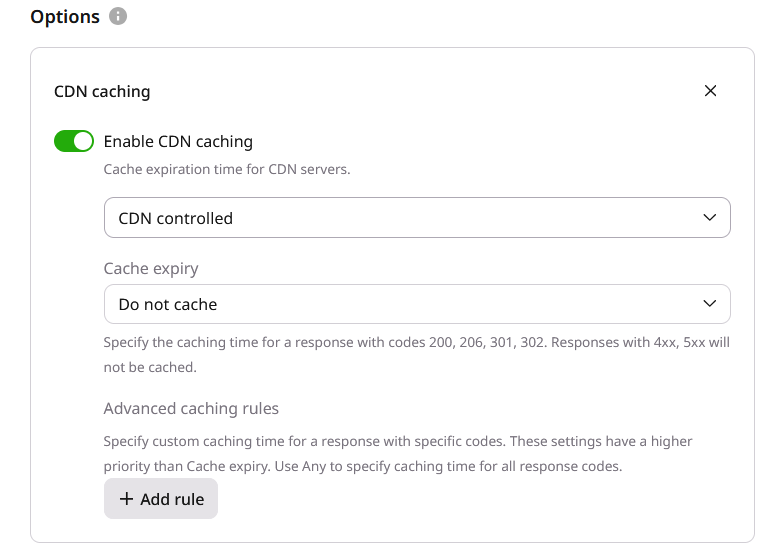
- Choose CDN caching then activate CDN caching
- Pick CDN Controlled for cache expiration, and select "Do not cache" on Cache expiry as per below picture
The rule should now appear as Active in the list of Rules associated to this CDN Resource
Step 2 - Alternate Content
So far all we've done is fundamentally tackle the Manifest routing for broadpeak.io. When you configure a broadpeak.io service, you'll want to involve other content too. In particular, when working with Content Replacement and/or Virtual Channel services, you will normally want to stitch in content (specifically media segments) that comes from other places, usually different origins.
If that content comes from the same origin (as is the case in our Getting Started examples for Virtual Channel and Content Replacement services), then there's nothing left to do. Your service should be operational.
Often though, the content that is substituted into the live stream will come from different domains. Extending your configuration to cover those is an extension of the work done so far:
- add new Origin groups for those domains
- and then Rules to route requests for the substituted media segments towards those
You'll do that based on the (partial) path to that content. So you need to be able to define a path pattern that uniquely identifies content coming from those alternate origins.
For example, let's imagine that we have VOD assets that sit on an alternate origin, which we want stitched in the stream. Here is one: https://bpkiosamples.s3-eu-west-1.amazonaws.com/AVOD/TOS-original-24fps-1080p/conditioned/stream.m3u8.
By adding it to a slot in the service, the stream output might look like the following:
#EXTM3U
#EXT-X-VERSION:3
#EXT-X-INDEPENDENT-SEGMENTS
#EXT-X-MEDIA-SEQUENCE:1
#EXT-X-TARGETDURATION:8
#EXT-X-PROGRAM-DATE-TIME:2023-10-03T20:14:17.821796+00:00
#EXTINF:4, no desc
live-audio=126470-video=1600215-424091019.ts?bpkio_serviceid=a3eb043e7bf775ded159a8940be5e720&bpkio_sessionid=10c0b51d66-005aea96-dc0b-40d4-8004-090bc0949313
#EXTINF:4, no desc
live-audio=126470-video=1600215-424091020.ts?bpkio_serviceid=a3eb043e7bf775ded159a8940be5e720&bpkio_sessionid=10c0b51d66-005aea96-dc0b-40d4-8004-090bc0949313
#EXT-X-DISCONTINUITY
#EXT-X-PROGRAM-DATE-TIME:2023-10-03T20:14:43.000000+00:00
#EXTINF:8,
../../../AVOD/TOS-original-24fps-1080p/conditioned/video/1600000/ts/segment_0.ts?bpkio_serviceid=a3eb043e7bf775ded159a8940be5e720&bpkio_sessionid=10c0b51d66-005aea96-dc0b-40d4-8004-090bc0949313
#EXTINF:8,
../../../AVOD/TOS-original-24fps-1080p/conditioned/video/1600000/ts/segment_1.ts?bpkio_serviceid=a3eb043e7bf775ded159a8940be5e720&bpkio_sessionid=10c0b51d66-005aea96-dc0b-40d4-8004-090bc0949313
This means that requests for media segments of the alternate content are sent to https://[uniquename].cdb.cdn.orange.com/AVOD/...
Assuming that all those replacement assets are under the same root folder AVOD, the path pattern /AVOD/* will provide a clean way to differentiate those segments from the original stream segments, and we can create a new Rule in the CDN configuration accordingly.
It means that the same steps for Adding Rules from above have to be followed.
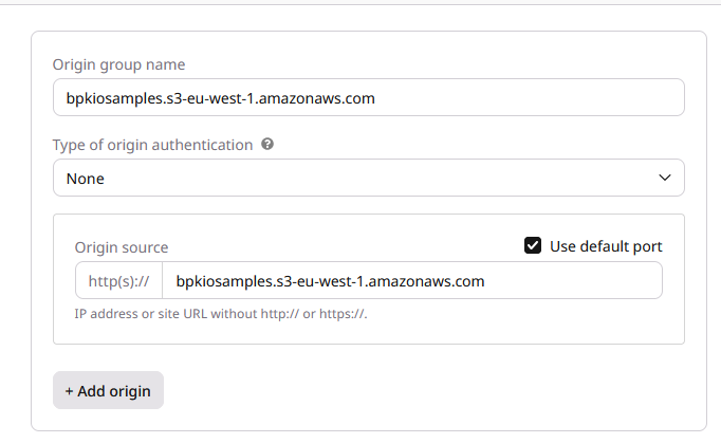
Before that we need to create another Origin group because the alternate content is based on bpkiosamples.s3-eu-west-1.amazonaws.com.
Adding an Origin group for Alternate content
We can repeat the steps done previously. Click on Origin group on the left side menu and click on Add origin group button
- Fill in Origin group name as per your preference
- We will use
bpkiosamples.s3-eu-west-1.amazonaws.comas Origin Source. - And click on Add group.
Add Rule to match Alternate content requests
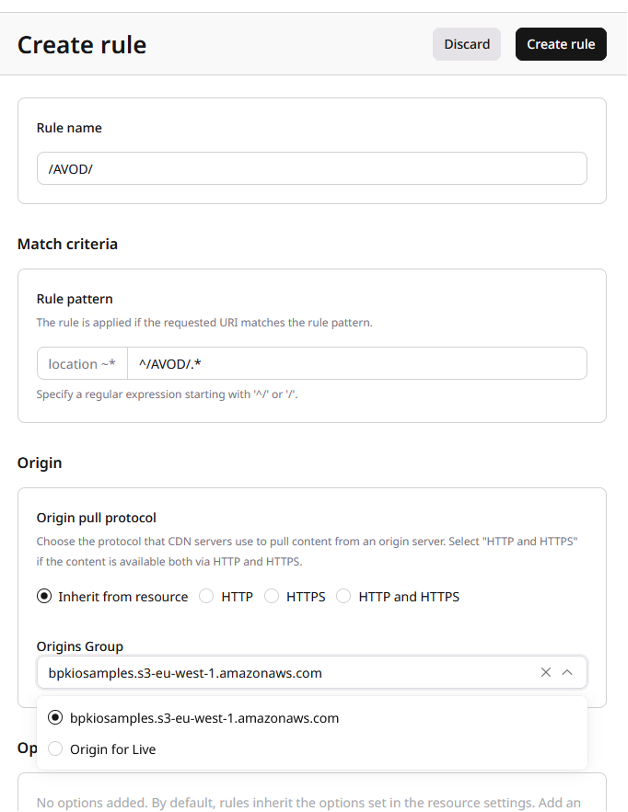
Now the new Rule can be added to match /AVOD/ in the URL path and the new Origin will be used. Click on create a Rule, then fill the following:
- Enter a name for the Rule as per your preference.
- Enter the pattern for the Rule to match. In our case it can be a regex to match the following path
/AVOD/*. The regex is^/AVOD/.* - Origin – select the Origin newly created for the Alternate content
bpkiosamples.s3-eu-west-1.amazonaws.com
From there (at the Rule level), we need to activate caching by default on the CDN Resource. Caching should be activated by default by toggling Enable CDN Caching so it becomes activated.
This last step may be optional. Not setting the CDN Caching at the Rule should mean that the Rule implicitely inherit form the CDN Caching configuration at the CDN resource level.
- Set the Cache Expiration time to "Origin Controlled" so the CDN follow by default the Time-to-live of the Origin.
- Set the Default caching expiry of your preference depending on whether your content is live or on-demand, which will apply only if no TTL is provided by the Origin.
Supplementary configuration
Additional rules
Depending on your application, there may be other redirection rules that you need to apply. A common one is the management of HLS Subtitles. If your content is in HLS and has WebVTT subtitles, but the alternate content (replacement content, or ads) does not, broadpeak.io will insert references to an empty VTT file (/empty.webvtt).
To support this, you need to add a new Rule to your CDN Resource as well:
- Rule pattern: /empty.webvtt
- Origin Group: broadpeak.io
- Caching Policy: Cache should be enabled
- Recommended options : CORS header support, Request Headers.
Similarly to what you have done for HLS, the same can be applied to MPEG-DASH. In that case the Rule for Manifests should be adapted so it matches the path of a MPEG-DASH Manifest.
- Rule pattern: regex to match the manifests requests – in our case to match files with .mpd extension (
/.*\.mpd$)
Summary
So, a full list of rules for a configuration that combines all this for a Content Replacement application will look something like the following:

For an initial configuration, this ought to do it
Updated 8 months ago